
The return to physical classrooms after COVID didn't erase what students learned during online learning: recording lectures makes studying significantly more effective. But capturing in-person lectures presents completely different challenges than recording Zoom classes. There's no perfect digital audio stream, no screen shares to capture, no convenient "record" button that just works.
Instead, you're sitting in a lecture hall, potentially far from the professor, surrounded by ambient noise, trying to capture complex information being delivered at high speed. Traditional voice recorders give you hour-long audio files you'll never realistically rewatch. Video recording is awkward, creates massive files, and is often prohibited.
The good news? Modern AI tools have solved the in-person recording problem in a way that actually helps you study. Instead of creating audio archives you need to process later, the best recording apps for in-person lectures generate smart, structured notes in real time—capturing the content that matters while you stay focused on understanding.
This guide covers everything you need to know about recording in-person lectures effectively: which tools actually work in physical classrooms, how to handle audio quality challenges, what the legal considerations are, and most importantly, how to transform recordings into study materials that help you learn. Whether you're sitting in a 300-person auditorium or a small seminar room, you'll learn exactly how to record lectures in a way that makes studying easier, not harder.
Why In-Person Lecture Recording Is Different
Recording in-person lectures involves challenges that simply don't exist with online classes, and understanding these differences shapes what recording methods actually work.
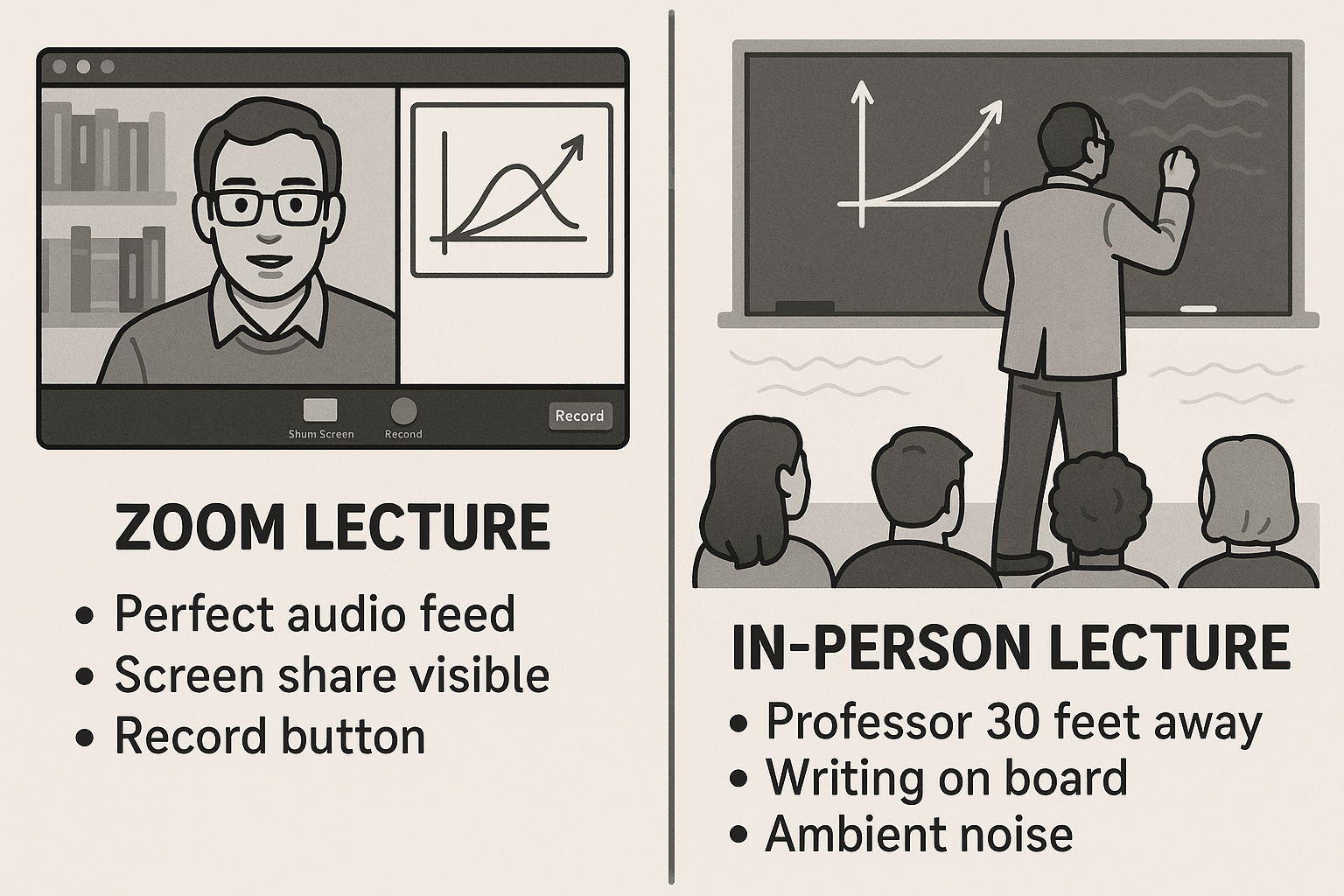
*The problem with recording in-person lectures: You're far away and the audio-quality is bad. *
Audio quality is unpredictable. In a Zoom lecture, everyone receives the same clean digital audio stream. In a physical lecture hall, your recording quality depends entirely on where you sit. Back row with a laptop microphone? You'll capture mostly echoes and ambient noise. Front row with a phone? Much better, but still nowhere near Zoom quality.
Visual content is harder to capture. Professors write on boards, show slides that might not be visible from your seat, and demonstrate concepts in physical space. You can't just screenshot like you would with screen sharing. This means recording audio alone often misses critical content.
You need to look engaged. In online classes, you can multitask and no one knows. In physical classrooms, professors notice if you're obviously not paying attention. Your recording method needs to be unobtrusive—you can't be hunched over fiddling with recording equipment while the professor is teaching.
Battery life matters. No convenient power access in most lecture halls. Your laptop needs to survive the entire lecture on battery while running recording software. Most laptops get 2-3 hours when recording, less than their normal 4-6 hour battery life.
The key insight: You're not trying to create a perfect archive of the lecture. You're trying to capture the content in a way that helps you study effectively later. That's a completely different goal, and it requires different tools than simple audio recording.
As we covered in our guide on why you should record your lectures, the purpose of recording isn't to create content you'll rewatch—it's to free your working memory during class so you can focus on understanding rather than transcribing.
The Best Solutions for Recording In-Person Lectures
Let's cut to what actually works. Different recording methods produce dramatically different results, and most students waste time with approaches that create more work than they save.
Solution #1: Notigo - Smart Notes Without the Recording Burden (Best for Most Students)
Score: 9.5/10
After testing every approach for recording in-person lectures, one solution stands out: Notigo generates structured, intelligent notes in real-time without creating audio files you need to manage and process later.
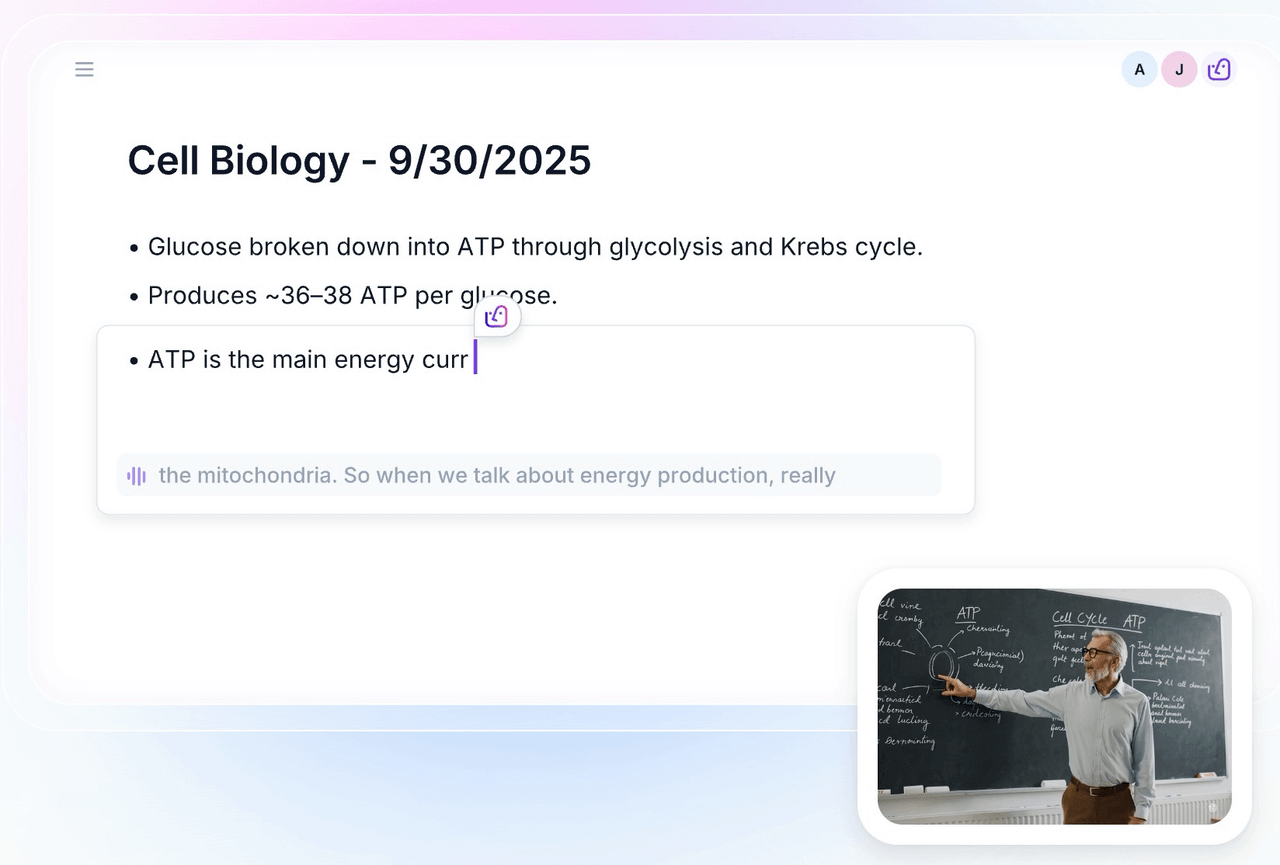
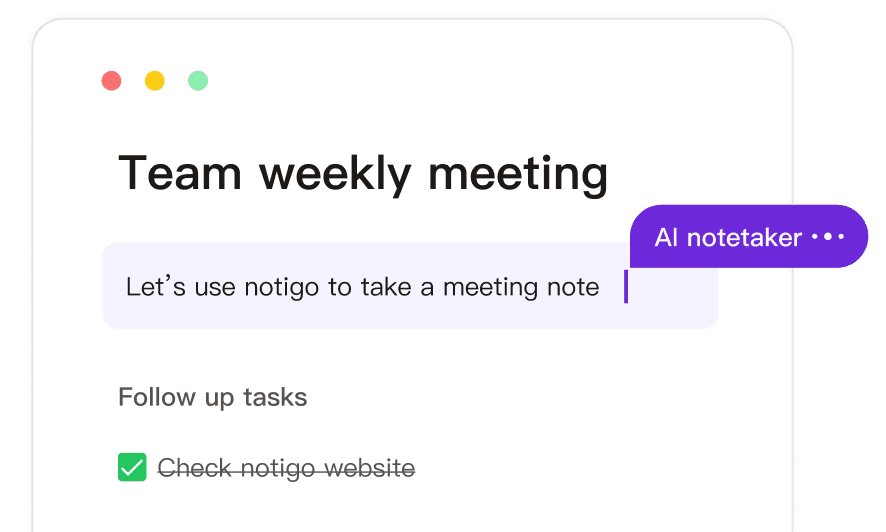
Notigo is the best AI note taker for students—it helps you take lecture notes in real-time and understands the context, even in in-person lectures.
How it works in physical lecture halls:
Open Notigo in your browser before class starts. Start recording—it captures audio through your laptop's built-in microphone (or phone microphone if you're using mobile). As the professor speaks, Notigo processes the audio and generates organized notes in real-time.
The critical difference from basic recording: Notigo doesn't just transcribe words. It understands lecture structure. When your professor defines a term, that becomes a definition section. When they work through an example, that gets captured as a structured example. When they explain a concept, the explanation is organized appropriately.
You can see your notes forming during the lecture, which helps you follow along and identify if something important was missed. At the end of class, you have structured study notes ready to review—not an hour-long audio file sitting on your hard drive.
Why this is ideal for in-person lectures:
The biggest challenge of in-person recording is post-processing. Traditional audio recordings require you to spend 45-60 minutes later listening and taking notes. That's essentially attending the lecture twice. Notigo eliminates this entire step by doing the intelligent processing during the lecture itself.
Storage is also a non-issue. Audio files are hundreds of megabytes each. Over a semester, you'll accumulate tens of gigabytes. Notigo generates text notes (tiny file sizes) and doesn't store the audio recordings—it processes them and deletes them. Your semester's worth of notes fits in megabytes, not gigabytes.
Battery life improves compared to traditional recording. Browser-based tools are more efficient than running OBS or other recording software. You'll get through a 90-minute lecture without battery anxiety.
Positioning and audio quality:
Notigo works best when you sit in the front third of the lecture hall (rows 2-6 are ideal). The AI can handle some background noise and less-than-perfect audio, but sitting closer to the professor dramatically improves note quality.
For very large lecture halls or if you sit in back, Notigo still captures content but quality degrades. In those situations, arriving earlier to get a better seat makes a significant difference.
Handling visual content:
Notigo captures what the professor says, which is typically the most important content. When visual elements matter (complex diagrams, equations on the board, important slides), take quick phone photos.
This hybrid approach—Notigo for verbal content + occasional photos for visual elements—captures everything without the burden of video files. Total time taking photos: usually 2-3 minutes across an hour-long lecture.
Best for:
- Any student recording in-person lectures regularly
- Lecture-heavy courses where verbal explanation is primary
- Students using flashcard systems (structured notes → flashcards workflow is fast)
- Anyone with limited storage space
- Students who want to actually study from notes, not rewatch recordings
Limitations:
- Requires laptop or phone (but you're bringing these to class anyway)
- Audio quality depends on seating position
- Very quiet professors or heavy accents can reduce accuracy
- Doesn't capture video of demonstrations (but photos solve this)
Pricing: $4.17-4.90/month, free trial available
For detailed guidance on getting the most from Notigo in lecture halls, see our Ultimate Guide to Using Notigo for Lecture Notes.
Solution #2: Otter.ai - Transcription with Speaker ID
Score: 7.5/10
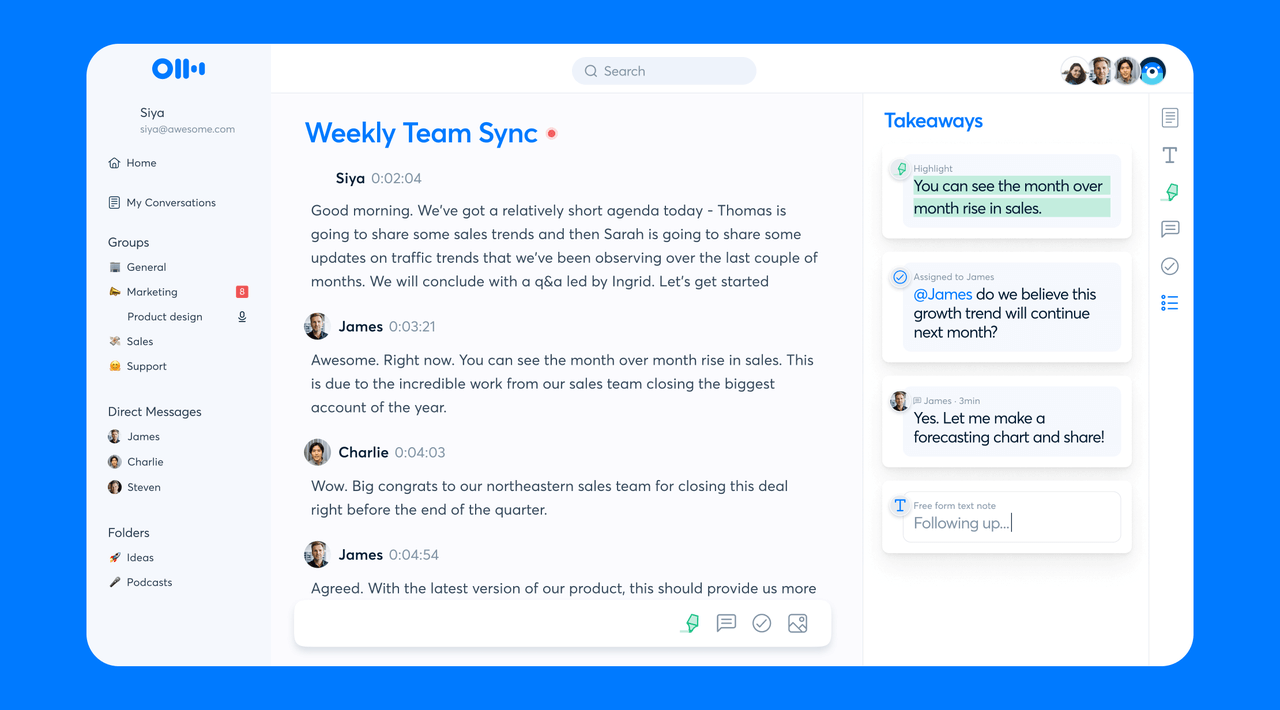
Otter.ai is primarily designed for online meetings, but the mobile app can record in-person lectures and produce transcripts with speaker identification.
How it works: Open the Otter mobile app, start recording. The app captures audio and generates a transcript as the lecture progresses. You can view the transcript in real-time or review it later.
Advantages:
- Good transcription accuracy
- Mobile app works well for in-person recording
- Speaker identification helps in discussion-heavy classes
- Searchable transcripts
- Can highlight and comment during recording
Why it ranks lower for in-person lectures: Otter outputs transcripts, not structured lecture notes. You get an accurate record of everything said, but organized chronologically rather than topically. You'll spend 30-45 minutes after lecture organizing the transcript into study notes.
The AI summaries Otter generates are designed for business meetings—they talk about "key discussion points" and "action items" rather than educational concepts, definitions, and examples.
Best for:
- Discussion-heavy seminars where tracking who said what matters
- Students who prefer transcripts over structured notes
- When you need to search across many lectures for specific terms
Limitations:
- Requires post-processing transcripts into study notes
- Meeting-style summaries don't fit lecture context
- $8.33/month minimum for useful features
- Creates transcription files that still need organization
Pricing: Pro $8.33/month
For a detailed comparison of how these tools handle student use cases, see our Otter.ai vs. Notigo comparison.
Solution #3: OBS Studio - Free Audio Recording
Score: 7.0/10
OBS Studio is professional screen recording software that can also capture pure audio. It's completely free and gives you full control over recording quality.
How it works: Install OBS, configure it to capture audio input from your laptop microphone, start recording before lecture. You get a complete audio file of the entire lecture.
Advantages:
- Completely free
- High-quality audio capture
- No file size limits
- You own the recording completely
Limitations:
- Requires installation and setup (not as instant as browser tools)
- Creates large audio files (300-500MB per hour-long lecture)
- No intelligent processing—you get raw audio
- Must spend significant time post-lecture processing into notes
Best for:
- Students who want complete audio archives
- When you have specific technical requirements for recording
- Free solution when budget is absolute priority
Pricing: Free
Solution #4: Phone Voice Recorder - Simple Backup
Score: 6.5/10
Every smartphone has a built-in voice recorder app. Simple, always available, but limited functionality.
How it works: Place phone on desk angled toward professor. Open Voice Memos (iPhone) or Recorder (Android). Press record. Stop at end of lecture.
Advantages:
- Zero additional tools required
- Always available (you have your phone)
- Decent audio quality with modern phones
- Good battery life
Limitations:
- Manual transcription required (or pay for transcription service)
- Large audio files
- No smart features whatsoever
- Time-consuming post-processing
Best for:
- Backup recording method (redundancy with laptop)
- Emergency when laptop dies
- Very occasional recording needs
Audio Quality: The Critical Factor
Recording quality determines whether your notes are useful or unusable. A few strategic choices dramatically improve results.
Where to Sit in the Lecture Hall
The optimal zone: Rows 2-6, center section
This positioning gives you close enough proximity for clear audio without the potential awkwardness of front row. Most AI note-taking tools and recording methods work excellently from this zone.
Front row can be too close—some professors pace and turn away, creating inconsistent audio. Back rows make any recording method struggle due to distance and ambient noise.
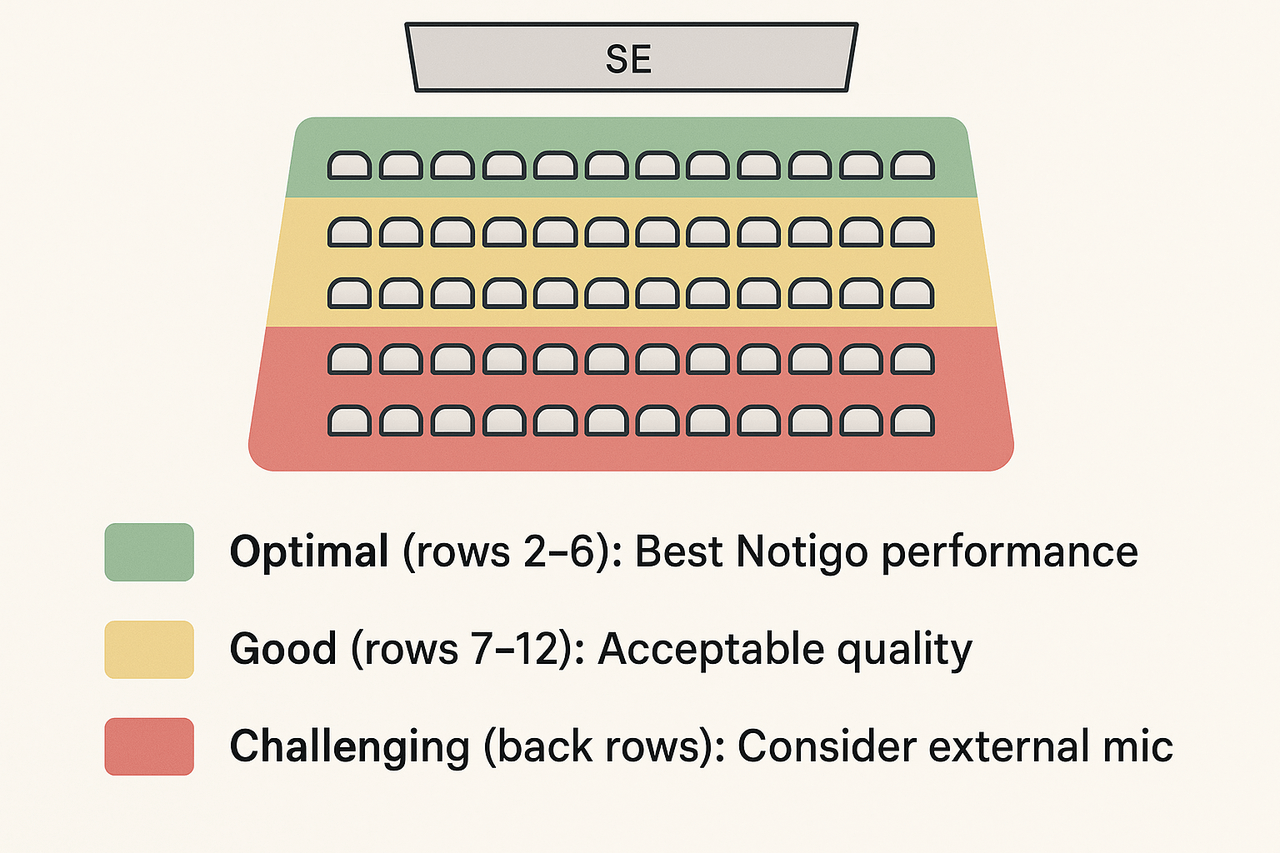
It's best to sit in the front of your lecture hall to take optimal notes with Notigo.
If you must sit in back:
- Arrive earlier to future lectures for better seats
- Consider an external USB microphone ($30-50)
- Phone recording on desk edge sometimes performs better than laptop from back rows
- Notigo and other AI tools still work but accuracy decreases
Positioning Your Recording Device
For laptop recording (Notigo, OBS):
- Open laptop fully (don't leave half-closed)
- Angle screen back so keyboard faces professor
- Remove obstacles between laptop and professor (water bottles, stacked textbooks)
- Keep away from laptop's own fan vents (reduces fan noise pickup)
For phone recording:
- Stand phone against water bottle or textbook, angled toward front
- Don't lay flat (muffles microphone)
- Top of phone should face professor
- Keep stable so it doesn't fall
Managing Background Noise
Sit away from:
- Air conditioning vents (constant noise interferes)
- Doors where people enter late
- Particularly chatty students
Minimize your own noise:
- Silence phone notifications completely
- Type notes quietly if needed
- Avoid rustling papers near microphone
- Don't eat during recording (even quiet snacks create noise)
Capturing Visual Content
In-person lectures include visual elements that audio recording alone misses: slides, board work, diagrams, demonstrations.
The Practical Hybrid Approach
You don't need to video record everything. That's impractical and creates massive files. Instead: Audio recording/smart notes + selective photos.
When to take photos:
- Complex diagrams professor draws on board
- Important equations you can't copy fast enough
- Slides with tables or detailed charts
- Process diagrams or flowcharts
- Anything professor says "This will be on the exam" while showing
Don't bother photographing:
- Simple text slides you can write down
- Things professor promises to post online
- Every single slide (you'll never review them all)
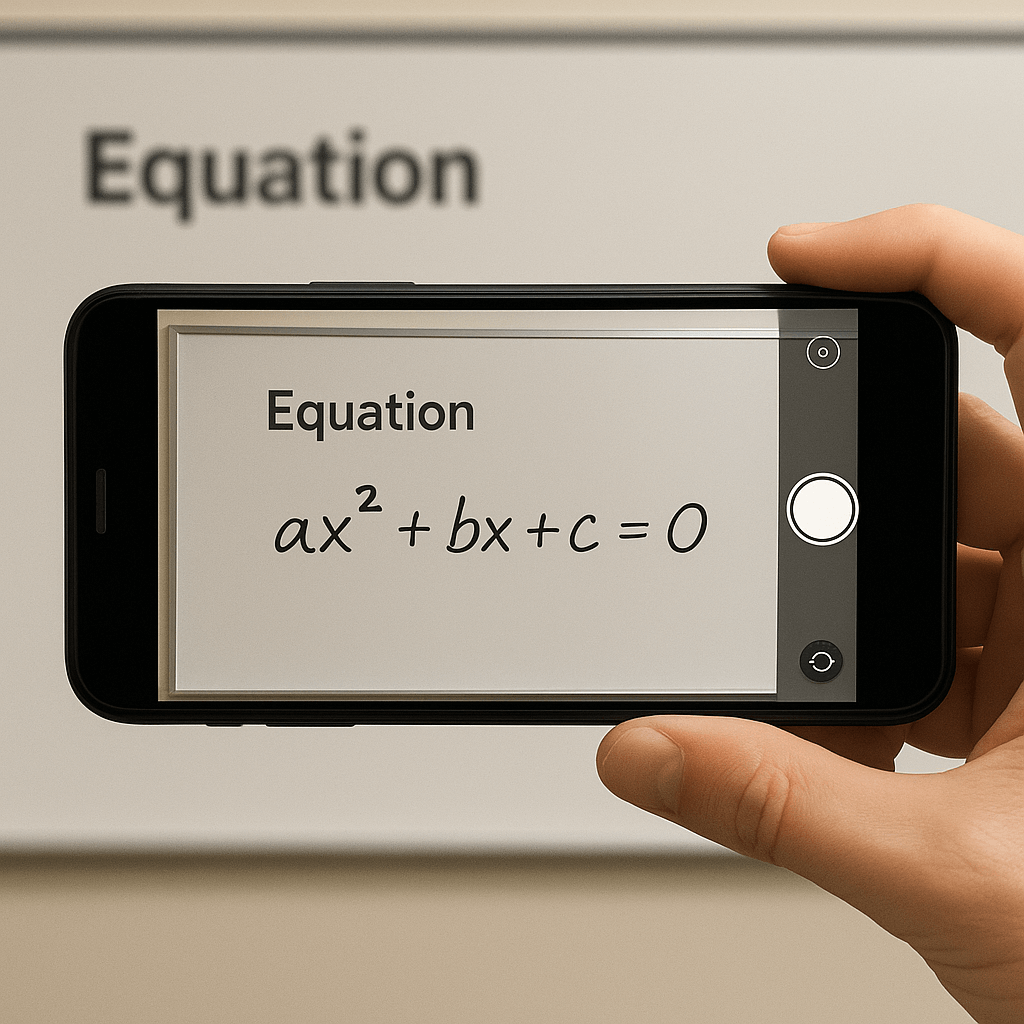
Take images to supplement your learning and upload them to Notigo later.
Technique for quick photos:
- Use phone (faster than laptop camera)
- Wait for professor to finish writing/settle on slide
- Quick snap without worrying about perfect framing
- Immediately return attention to lecture
- Don't review photo immediately (trust it captured)
Organization:
- Create phone album per course
- Delete unnecessary photos after lecture (while memory is fresh)
- Insert key photos into your notes during processing time
Combining Photos with Notigo
This workflow is particularly effective:
- Notigo captures verbal explanations as structured notes
- Quick phone photos capture critical visuals
- After lecture: Insert photos into relevant note sections
- Result: Complete record (explanations + visuals) without video file burden
Total time investment: 2-3 minutes of photography during lecture, 5 minutes organizing after.
Legal and Policy Considerations
Before recording any in-person lectures, understand the legal and institutional landscape.
Check Your University Policy First
This is non-negotiable. Policies vary dramatically between institutions:
Where to find your policy:
- Student handbook (often has recording section)
- Academic integrity policy
- Code of conduct
- Disability services website
Common policy types:
Explicit permission required - Must ask each professor
Notification required - Can record but must inform professor
Presumed allowed for personal use - Recording for studying is acceptable
Accommodation-based only - Recording only with disability documentation
Complete prohibition - No recording except specific approved circumstances
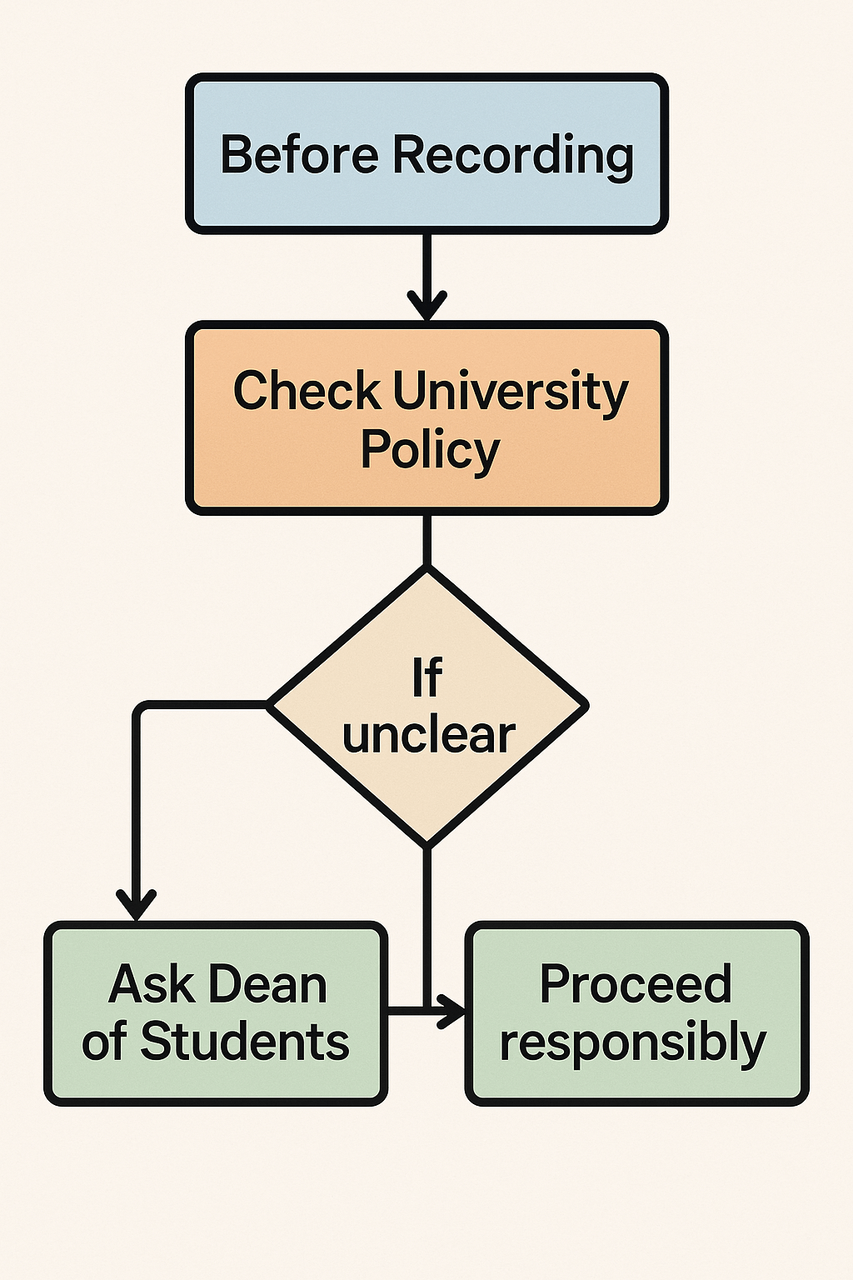
Always obtain permission before recording lectures.
When to Ask Permission
Regardless of policy, certain situations require explicit permission:
- Small seminar classes with personal discussions
- Guest speakers (not part of course contract)
- When policy is ambiguous
- Classes involving sensitive topics
How to Ask Professor
If you need to request permission, email before semester starts:
"Hi Professor [Name],
I'm enrolled in your [Course] this semester. I'd like to ask permission to audio record lectures for my personal study purposes. Recording helps me focus on understanding during class rather than transcribing every detail.
The recordings would be solely for my own studying and would not be shared with anyone. I'll delete them after the final exam.
Please let me know if you're comfortable with this.
Thank you, [Your Name]"
Most professors say yes when asked directly and assured recordings won't be shared publicly.
Recording as Disability Accommodation
If you have documented disabilities (ADHD, processing disorders, hearing issues), recording often qualifies as reasonable accommodation:
- Register with disability services office
- Request recording accommodation
- University provides official letter to professors
- Professors must allow recording (with rare exceptions)
This provides official permission that overrides general policies.
What You Should Never Do
- Share recordings publicly online
- Sell recordings or notes from recordings
- Distribute recordings outside your course
- Record to avoid attending (defeats learning purpose)
- Ignore explicit professor requests not to record
The Complete In-Person Recording Workflow
Having the right tools means nothing without an effective workflow. Here's the system that actually works.
Before Lecture (2 minutes)
Check setup:
- Laptop >50% battery? (Sit near outlet if lower)
- Notigo open in browser tab
- Phone charged as backup
- Seated in optimal zone (rows 2-6)
Start recording BEFORE professor speaks
Begin as you sit down. You'll catch pre-lecture announcements, informal Q&A, and opening remarks that often contain valuable context.
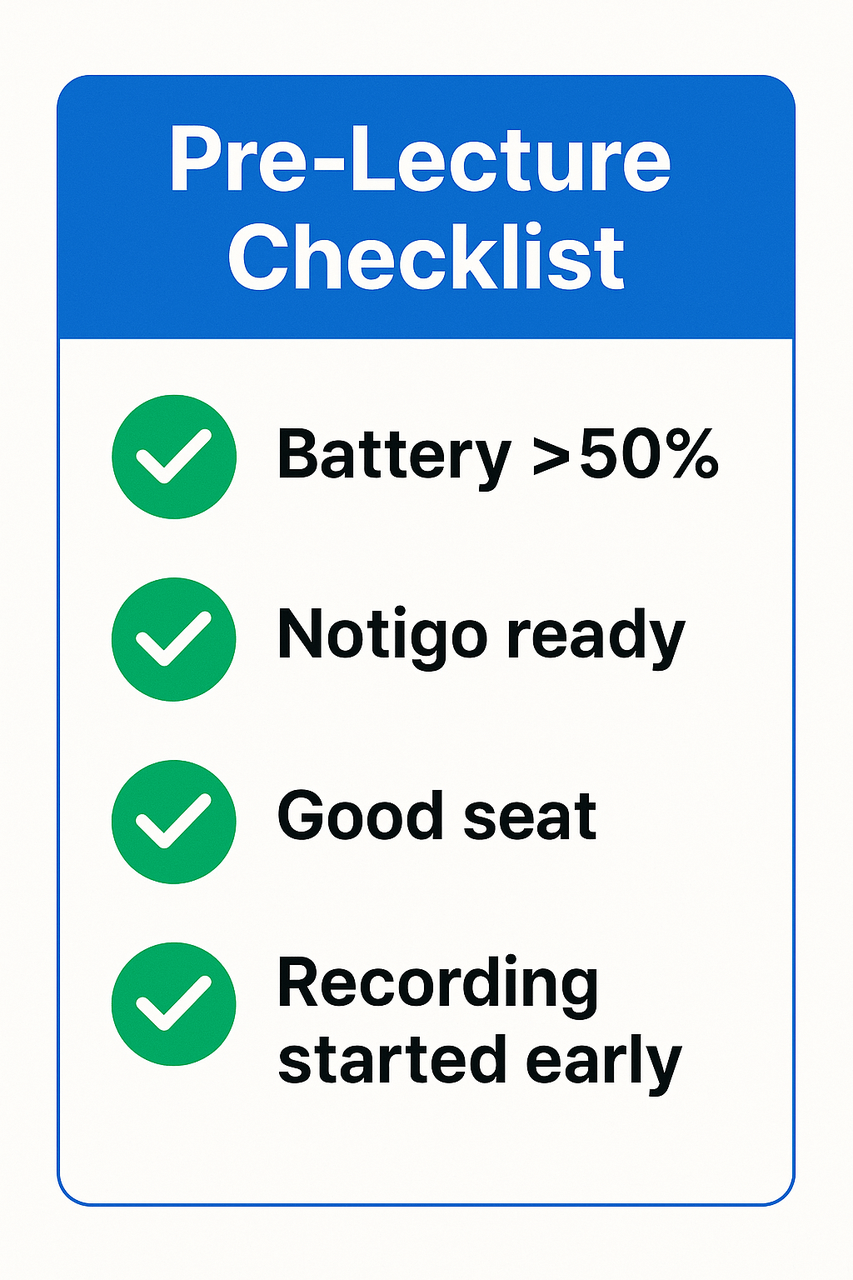
Before your lecture starts, make sure you have enough battery, set up Notigo, sat close to the professor and record before the lecture starts.
During Lecture (Focus on Understanding)
Your priorities:
- Understanding what professor explains
- Taking quick supplemental notes on key points
- Photographing important visuals when needed
DO NOT:
- Constantly check if recording is working (trust your setup)
- Try to manually transcribe everything (that's what Notigo does)
- Multitask on other work
- Worry about missing words
DO:
- Actually listen and think about concepts
- Note connections to previous material
- Take photos of complex diagrams
- Add annotations like "unclear - review later"
If using Notigo, glance occasionally to verify it's capturing appropriately. But stay present—don't get absorbed reading notes while lecture happens.
After Lecture (5 minutes)
Stop recording properly:
- Notigo: Stop recording, let it finish processing
- Other tools: Stop and verify file saved
Quick quality check:
- Listen to 30 seconds from middle of recording
- Verify audio is clear enough
- Note any issues for adjustment next lecture
Initial organization:
- Move photos to course folder
- Add quick note about main topics covered
Don't immediately start deep processing. Your brain needs a break.
Within 24 Hours: Processing Time
This is the most critical step. Raw recordings don't help you learn. Processed study materials do.
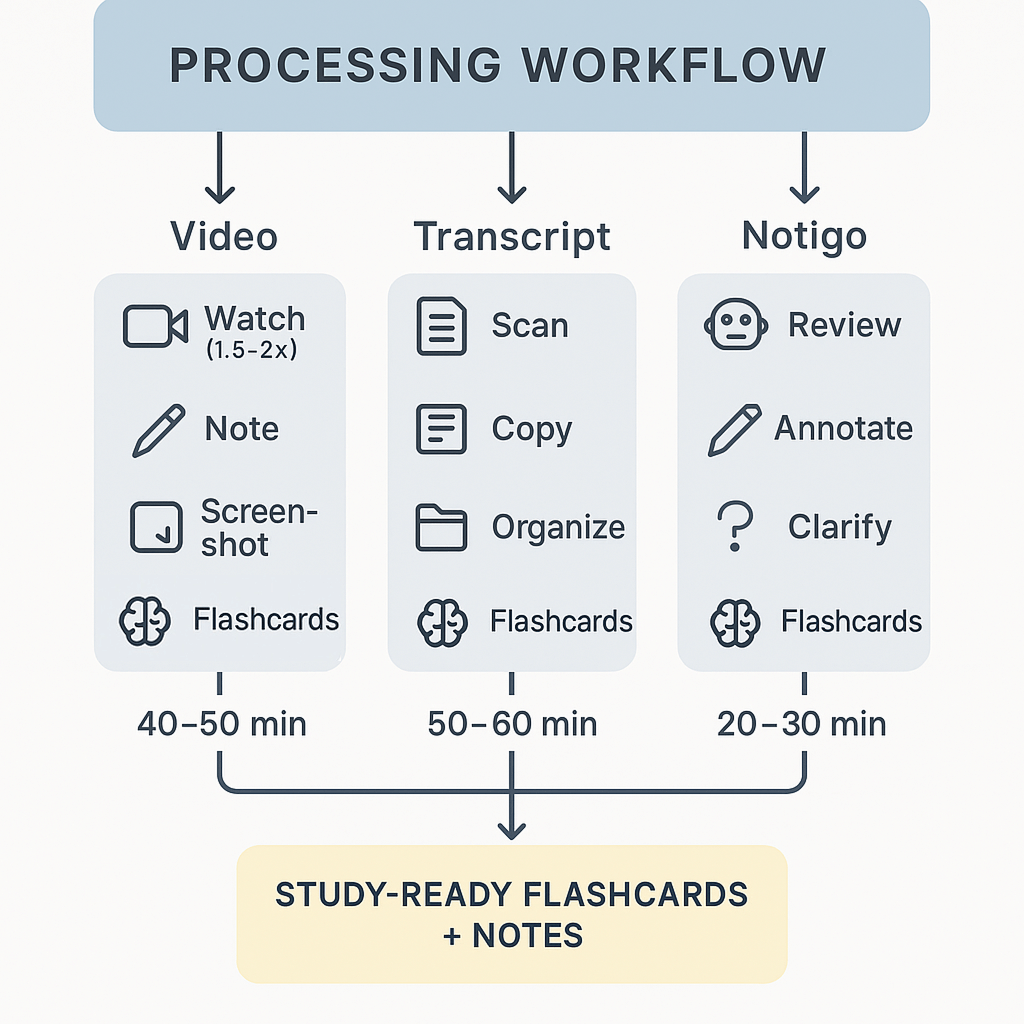
With Notigo (20-25 minutes total):
- Review AI-generated structured notes (10 min)
- Add your annotations and clarifications (5 min)
- Insert any photos into relevant sections (3 min)
- Create flashcards from organized content (10-15 min)
- Add to spaced repetition system
With audio recording (45-70 minutes total):
- Listen at 1.5x speed (40 min for 60-min lecture)
- Take notes on key concepts while listening
- Organize notes topically (not chronologically)
- Create flashcards from your notes
- Archive or delete audio file
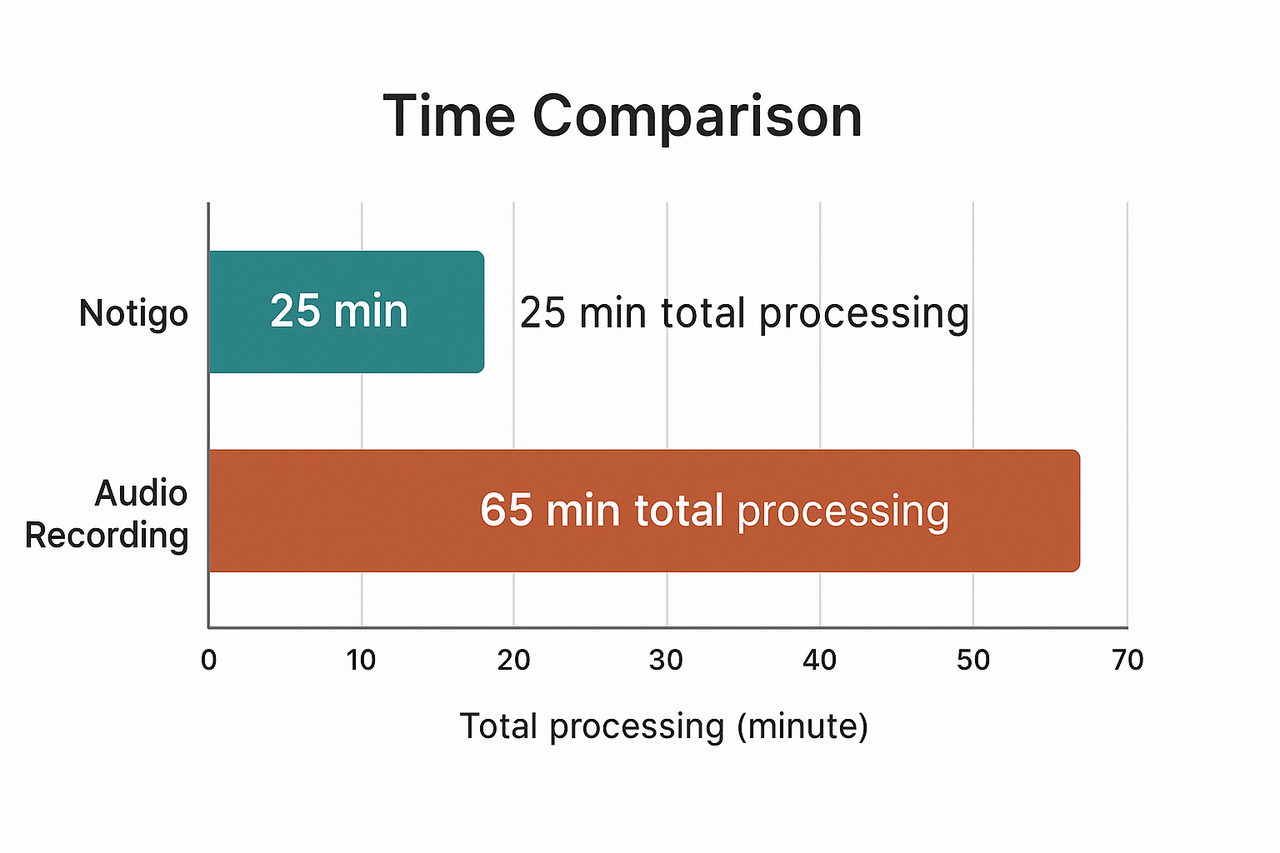
With Notigo, you will save a lot of time on post-processing your lecture materials.
The 24-hour rule matters: Process while lecture is fresh in memory. Waiting a week means you've forgotten context. Consistency beats perfection.
For the complete study system that integrates recording with active learning, see our guide on how to study for exams.
Common Problems and Solutions
Problem: "Recording quality is poor from my seat"
Solutions:
- Sit closer next lecture (arrive earlier)
- Use external USB microphone if recording regularly
- Try phone positioned on desk edge toward professor
Problem: "My laptop dies mid-lecture"
Prevention:
- Start class with >50% battery
- Sit near outlets when possible
- Have phone backup recording
When it happens:
- Switch to phone recording immediately
- Take detailed manual notes for remainder
- Ask classmate after if they recorded
Problem: "I forget to start recording"
Solutions:
- Set calendar reminder 5 minutes before class
- Make it part of pre-class routine (arrive, sit, open Notigo, record)
- Phone backup catches lectures you miss on laptop
Problem: "Files are filling my storage"
Solutions:
- Use Notigo (text notes, not audio files)
- If using audio: Delete after processing into notes
- External hard drive for archival if needed
- Process recordings within 24 hours, then delete
Conclusion
Recording in-person lectures effectively comes down to choosing tools that match how you actually study. Traditional audio recording creates files you'll struggle to process. Video recording is impractical and creates massive storage problems. Phone voice memos require manual transcription.
Smart note-taking tools like Notigo solve the fundamental problem: they generate organized, study-ready notes in real-time without creating audio archives you need to manage. You sit in lecture, focus on understanding, and walk away with structured content ready to transform into flashcards.
The best recording setup is one you'll use consistently. For most students, that means:
- Notigo for intelligent note generation (captures what matters, no file burden)
- Sitting in rows 2-6 for optimal audio quality
- Quick phone photos for important visual content
- Processing within 24 hours while memory is fresh
Combined with evidence-based study techniques like active recall and spaced repetition, effective lecture recording becomes a cornerstone of academic success.
For more on building a complete study system:
- Why You Should Record Your Lectures
- Best Way to Record Lectures for Students
- How to Study for Exams: Ultimate Guide
- Best AI Note-Taking Apps for College Students
Start recording your next in-person lecture the right way.